

TikTok Video Specs for 2026: One Export Preset and Checklist
Updated: 5 days ago

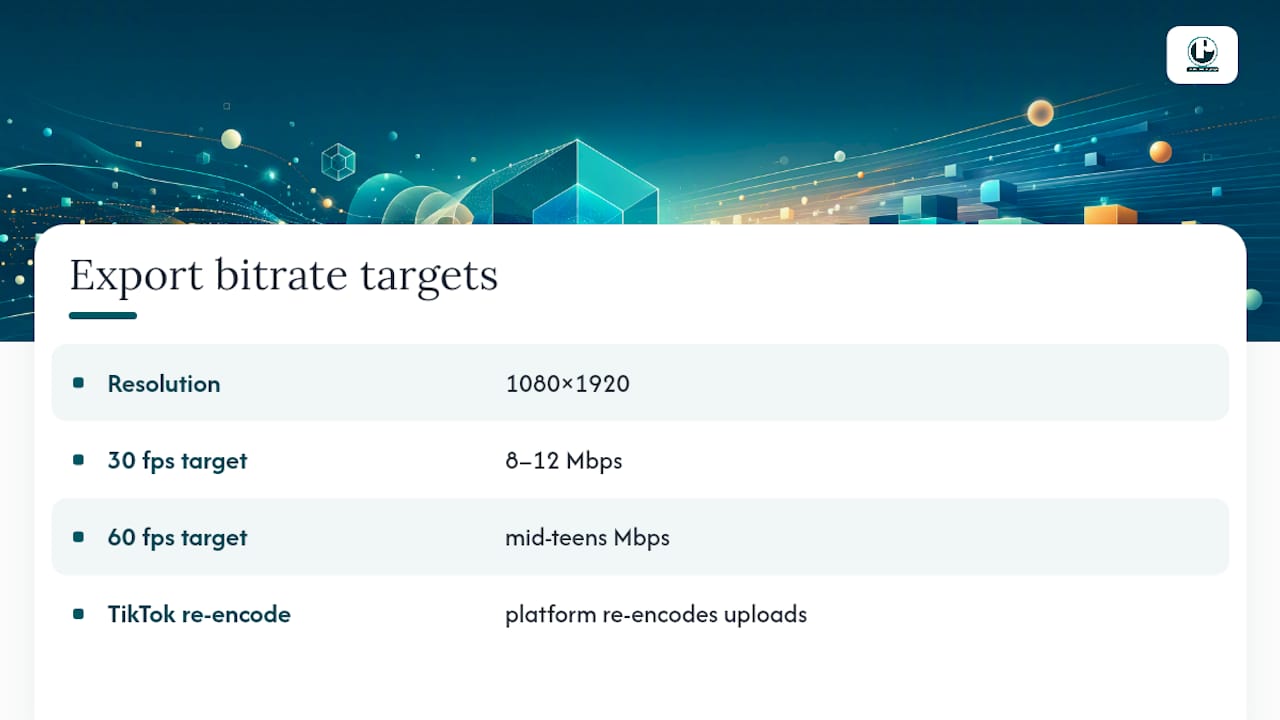
Export your master at 1080×1920 (9:16), wrapped in an MP4 container with H.264 video and AAC audio, at 30 fps and roughly 8 to 12 Mbps. That single preset covers nearly every organic post you’ll ever upload. Ads run by different rules: they cap file size around 500 MB, enforce their own bitrate floors, and often reward a slightly higher export bitrate before TikTok’s compression takes its cut.
TL;DR:
Export videos at 1080×1920 resolution, 30 fps, with a bitrate of 8 to 12 Mbps to balance quality before TikTok’s compression.
Upload from high-quality source files to avoid double compression artifacts that soften footage or cause blockiness.
Keep essential on-screen text within the central safe zone to prevent cropping on the profile grid and thumbnail previews.
Check TikTok’s official specifications regularly, as file size, length limits, and ad requirements evolve over time.
What Are the Correct TikTok Video Specs to Use?
Copy these values straight into your export dialog before you touch anything else.
Aspect ratio: 9:16 vertical is the default; 1:1 and 16:9 are accepted but get cropped or padded on most feeds.
Resolution: 1080×1920 is the recommended standard; ad minima drop as low as 540×960, 640×640, or 960×540 depending on placement.
Format and codec: MP4 or MOV container, H.264 video codec (H.265 is workable but riskier), AAC audio.
Frame rate: 30 fps is the standard default; TikTok accepts anywhere from 23 to 60 fps, and 60 fps suits fast motion or sports content.
Bitrate: 8 to 12 Mbps at 1080p is the sweet spot before TikTok’s own compression touches the file.
File size: in-app mobile caps sit far below the web uploader’s ceiling, so heavy files need a different upload path.
Length: in-app recording, uploads, and ad placements each carry separate caps, covered in detail below.
Treat resolution, format, and codec as hard requirements. Treat bitrate and frame rate as quality levers you control before TikTok’s servers get involved.
Why Resolution, Codec, and Frame Rate Actually Matter
Shooting in 4K feels like the safe move, but exporting your final file at 4K for TikTok usually backfires. TikTok downscales everything to fit its player anyway, and a 4K file forces its compression engine to work harder, often introducing more banding and blocking than if you’d handed it a clean 1080×1920 master from the start. Many production teams now capture at 4K for flexibility but downscale to 1080×1920 for the final export, which controls sharpening and avoids the quality loss that comes from double-encoding.
Container and codec choice is simpler than it looks. MP4 wrapped around H.264 video and AAC audio is the safest, most universally compatible export you can make, and it’s what most editing software defaults to anyway. H.265 (HEVC) can shrink file size at comparable quality, but it’s less consistently supported across upload paths and offers no real benefit once TikTok re-encodes the file regardless. Stick with H.264 unless you have a specific reason not to.
Frame rate should generally match what you shot. If your footage is native 24 fps, don’t force it to 30. That said, 30 fps is the reasonable default for talking-head content, tutorials, and most branded work, while 60 fps is worth the extra bitrate for anything with fast motion, whip pans, or sports footage. TikTok supports frame rates roughly between 23 and 60 fps, so there’s flexibility, but consistency within a single video matters more than which number you pick.
Bitrate is where quality actually gets decided. Aim for 8 to 12 Mbps at 1080p and 30 fps; push higher, into the mid-teens, if you’re running 60 fps or heavy motion. TikTok re-encodes every upload, and its compression can be aggressive enough to introduce visible artifacts, so starting from a high-quality source file matters more than almost any other decision you make in the export window. For a deeper walk-through of building a clean vertical master, Puritano’s guide to vertical video specs covers the encoder settings step by step.
What Are TikTok’s File Size and Length Limits?
Upload method changes the rules more than most creators realize. The TikTok mobile app caps file size well below what the platform can technically handle: Android tops out around 72 MB, while iOS allows closer to 287.6 MB. The web uploader accepts significantly larger files, which makes it the better path for anything shot at high bitrate or long duration.
Length caps follow a similar split by upload path:
In-app recording: capped at roughly 10 minutes.
App and web uploads: many accounts can post 30 to 60 minute videos, depending on account status and region.
Ad placements: most formats run 5 to 60 seconds, with some reservation formats allowing longer.
If your file is large because of bitrate rather than length, don’t just crank down the resolution. Lower the bitrate first, keep 1080×1920 intact, and re-check the file size. For genuinely long-form content that blows past mobile caps, split it or upload through the web interface rather than compressing a full-length video down to fit an app limit it was never designed for.
How Do You Avoid Cropping Your Text Off Screen?
TikTok’s interface eats into your frame more than most creators account for. Anything vital, a logo, a call-to-action, key on-screen text, needs to sit inside the central safe area away from both zones.
The profile grid adds a second constraint. TikTok crops your video into a square-ish thumbnail on the profile page, meaning wide compositions or edge-heavy framing can lose faces or titles entirely in the grid view. Center your subject rather than framing for a full 9:16 canvas alone.
Before you export, run this check:
Is any text positioned inside the right 13% icon column?
Does the bottom quarter of the frame contain anything essential?
Would the cover image still make sense cropped into a small square?
A clean cover image, ideally a frame where your subject or title reads clearly at thumbnail size, does more for click-through on your profile than most creators give it credit for.
What Specs Do TikTok Ads Require by Placement?
Organic specs are a starting point for ads, not the finish line. Each placement type layers its own requirements on top.
In-Feed Ads: accept 9:16, 1:1, or 16:9, but 9:16 at a minimum of 540×960 is recommended; file size caps out around 500 MB, and shorter durations tend to perform better for reach-focused campaigns.
Spark Ads: inherit the sizing of whatever organic post you’re boosting, since Spark essentially amplifies an existing video; watch caption length, since caption extraction from the original post carries its own character limits.
TopView and reservation placements: support higher bitrates than auction-based In-Feed ads, since reservation formats favor Mbps-range encoding over the lower kbps floors auction ads allow. Check TikTok Ads Manager for the current safe-zone template before finalizing text placement.
The practical takeaway: auction ads set a lower bitrate floor to control server load across huge volumes of creative, while premium placements like TopView reward a heavier, cleaner encode because they’re guaranteed premium screen time. Export accordingly rather than reusing one bitrate setting across every campaign type.
How Should You Export a TikTok Video for Best Quality?
Follow these steps in order, and you’ll avoid the two most common quality complaints Puritano hears from clients: soft footage and blown-out compression artifacts.
Start with your highest-quality master. Pull from the original camera file, not a previously compressed export, and strip any unused audio tracks before rendering.
Check framing against the safe zones covered above, particularly if the video includes lower-third text or a logo bug.
Set your canvas to 1080×1920, container to MP4, codec to H.264, audio to AAC at 128 kbps or higher.
Use two-pass or constrained VBR encoding at 8 to 12 Mbps for 30 fps content; push into the higher end of that range, or beyond, for 60 fps footage or TopView ad placements.
Preview the exported file on an actual phone before uploading, and test both the app and web upload paths if the file runs long or large.
Pro Tip: Skip aggressive denoise or sharpening filters in your final export. TikTok’s compression already adds contrast and edge artifacts, and stacking a sharpening pass on top tends to exaggerate banding rather than fix softness. A light color grade and clean captions do more for perceived quality than any sharpening slider.
Teams briefing a production partner on these deliverables can lean on Puritano’s guide to briefing a video production team to make sure safe-zone and format requirements get communicated clearly the first time.
How Do Captions and Subtitles Work on TikTok?
TikTok reads burned-in text differently than it reads native caption files, and mixing the two up is a common source of accessibility complaints and lost engagement. Auto-generated captions, TikTok’s built-in feature, work directly off your audio track and support standard styling adjustments (font, color, position) inside the app’s editor. If you’re importing subtitles from an outside editor, SRT is the most broadly compatible format for burning text into the frame before export.
Caption text should stay legible at thumbnail size and clear of both safe-zone exclusion areas covered earlier. TikTok’s on-screen text tool imposes a practical character limit per line before text starts wrapping awkwardly, so short, punchy phrasing reads better than dense paragraphs crammed into one caption card. For post captions (the text below the video, not on-screen text), TikTok allows up to roughly 2,200 characters, though the visible portion before the “see more” cutoff is much shorter, so front-load your key message.
If your workflow involves adding SRT files inside Premiere Pro before export, this step-by-step guide to importing SRT files walks through the process cleanly, which matters if you’re managing captions across dozens of vertical cuts for a campaign.
Style consistency matters more than font choice. Pick one caption style, one position, and one color scheme for a campaign and stick with it across every video in the series. Viewers register brand consistency faster than they register clever typography.
What Upload Mistakes Cost You the Most Quality?
A handful of repeat mistakes account for most of the “why does my video look bad on TikTok” complaints Puritano’s editing teams see.
Uploading a video that’s already been compressed once, say, an MP4 exported at low bitrate for email review, then re-uploaded to TikTok, stacks two rounds of compression on top of each other. The result is soft, blocky footage that no amount of in-app filtering fixes. Always upload from the highest-quality master you have, not a previously shared or compressed copy.
Ignoring safe zones is the second most common error, and it’s an easy one to catch before export if you check the frame against the icon column and caption area covered earlier in this guide.
Mismatched aspect ratios cause the third major issue. Uploading horizontal 16:9 footage and letting TikTok pad it with black bars wastes screen real estate and reads as an afterthought next to native vertical content. If a horizontal source is unavoidable, reframe key moments for 9:16 rather than accepting the letterbox.
Finally, watch file size versus bitrate tradeoffs. Compressing a file down just to squeeze under the mobile app’s upload cap, instead of using the web uploader for larger files, often costs more visible quality than the convenience is worth.
How Have TikTok’s Video Specs Changed Over Time?
TikTok’s specs aren’t frozen. Aspect ratio and resolution recommendations have stayed relatively stable since the platform matured, but file size caps, ad-specific bitrate floors, and length limits have shifted more than once as TikTok expanded from short clips into longer-form content and built out its advertising infrastructure.
The clearest example: video length limits have crept upward over the platform’s history, from an original short-clip format into the 10-minute in-app recording cap and 30 to 60 minute upload allowances some accounts now have. Ad specs have moved in the opposite direction toward more granularity, with separate rules now covering In-Feed, Spark, and TopView placements rather than one blanket ad spec.
Because these numbers move, TikTok’s own Ads Manager and Help Center remain the actual source of truth, not any third-party guide, including this one. Check the last-updated timestamp on TikTok’s official specification pages before finalizing a large campaign, particularly if you’re working against ad placement minimums that carry real budget consequences if a creative gets rejected.
What Audio Specs Should You Use for TikTok?
Audio problems are less visible than framing mistakes, but they cost engagement just as fast when a voiceover sounds thin or a music bed clips. AAC is the standard audio codec paired with H.264 video inside an MP4 container, and it’s what nearly every export preset defaults to for good reason: broad compatibility with minimal quality trade-off.
Set your sample rate to 48 kHz and export in stereo unless you have a specific mono requirement (voiceover-only content sometimes benefits from mono to avoid unintended stereo width). Audio bitrate at 128 kbps or higher preserves clarity through TikTok’s re-encoding process; going lower risks audible compression artifacts, especially on music-heavy content where TikTok’s own audio processing is already doing work in the background.
Keep dialogue and music levels balanced before export rather than relying on TikTok’s in-app audio ducking to fix a mix. Native captions pulled from a clean audio track transcribe more accurately too, which matters if you’re leaning on TikTok’s auto-caption feature rather than importing your own SRT file. Strip unused audio tracks from your project file before final export; extra silent or muted tracks add unnecessary file weight without adding anything to the finished video.
Where Can You Verify These TikTok Specs Yourself?
Specs shift, so bookmark the primary sources rather than any single guide, including this one.
The Real Problem Isn’t the Specs, It’s the Workflow
Most TikTok spec guides treat this as a one-time lookup: find the numbers, plug them into your export settings, move on. That misses what actually causes quality complaints. The failure point is almost never someone not knowing that 1080×1920 is the recommended resolution. It’s a team exporting from a pre-compressed proxy file, skipping the safe-zone check, or reusing an ad bitrate setting on an organic post because nobody wrote the workflow down.
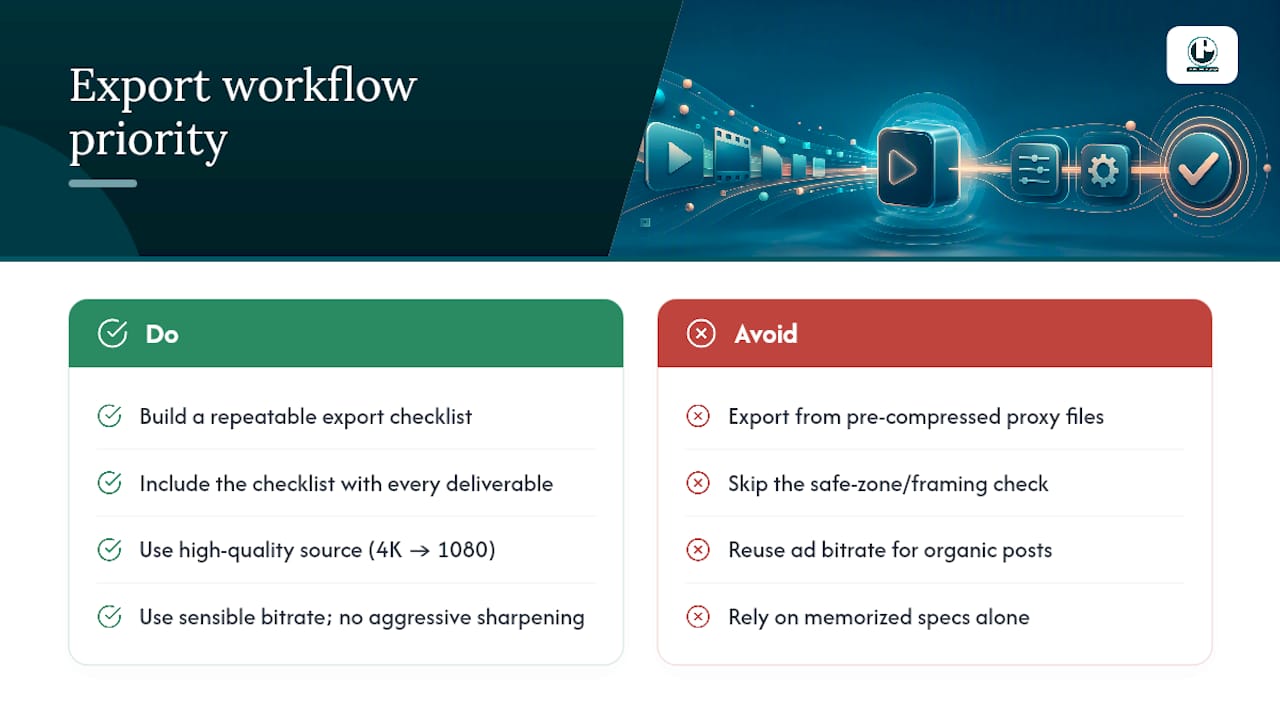
The specs in this guide won’t change how your video looks nearly as much as your source file quality and your export discipline will. A perfectly spec’d export from a soft, over-compressed master still looks soft. A slightly imperfect export from a clean 4K-to-1080p downscale, done with a sensible bitrate and no aggressive sharpening, usually wins.
If there’s one thing worth prioritizing over memorizing every number in this guide, it’s building a repeatable export checklist your team actually follows every time, not just when someone remembers to check. Puritano treats that checklist as part of the deliverable on every social campaign, not an afterthought bolted on after the edit is locked, because the gap between “technically correct spec” and “video that actually looks good on a phone screen” is where most brands quietly lose quality.
Puritano Media Group builds that discipline into every social-ready deliverable it produces, whether the project is a full campaign or a single hero video meant to anchor a brand’s TikTok presence. If your team needs vertical-first creative built to spec from the first take rather than fixed in export, Puritano’s music video production work shows what a properly planned vertical shoot looks like from camera to final compression.
Sources
Recommended


Comments