

Section 508 Video Compliance: A Producer's Guide
Updated: 3 days ago

Every Section 508 video produced for a federal agency or federally funded program must meet four non-negotiable requirements: synchronized captions, audio descriptions for prerecorded content with essential visual information, an accessible text transcript or equivalent alternative, and a video player that exposes caption and audio description controls at the same menu level as volume and program selection. Those four elements are the compliance floor. Here is where to start:
Identify your media type. Determine whether your content is synchronized media (video with audio), audio-only, or video-only. Each category carries different obligations under the Revised Section 508 Standards.
Add captions. All prerecorded synchronized media requires closed captions. Live audio content requires real-time captions.
Provide audio descriptions (AD) where visual information is essential. At WCAG Level AA, prerecorded synchronized media requires AD whenever the video track carries meaning that the audio track does not convey.
Publish an accessible transcript. Place it alongside the player, in the same location, in an accessible file format.
Confirm your player meets 503.4. Caption and AD controls must sit at the same menu level as volume and program selection, not buried in a secondary settings panel.
Assign roles and schedule the work. Captioning and AD are production deliverables, not post-launch patches. Put them in the budget and timeline from day one.
Key Takeaways
Section 508 requires captions, audio descriptions at Level AA, accessible transcripts, and player controls at the same menu level as volume for all synchronized media produced for or by federal agencies.
Point | Details |
Plan accessibility in preproduction | Add captioning and AD to the budget and schedule before the shoot; remediation after delivery costs significantly more. |
Caption all synchronized media | Prerecorded and live video with audio requires synchronized captions meeting quality standards for accuracy, speaker ID, and formatting. |
Provide audio descriptions at Level AA | Prerecorded synchronized media with essential visual information requires AD under WCAG SC 1.2.5, which federal agencies must meet. |
Confirm player meets 503.4 | Caption and AD controls must be at the same menu level as volume and program selection, and all controls must be keyboard-accessible. |
Puritano integrates compliance from day one | Puritano scopes captioning, AD, and player configuration into government and corporate video projects at the proposal stage. |
What does Section 508 actually require for video?
The Revised Section 508 Standards apply to all Information and Communication Technology (ICT) procured, developed, maintained, or used by federal agencies. That scope covers agency-produced training videos, public-facing website video, e-learning modules, recorded webinars, and any video embedded in federal digital products. Contractors and vendors supplying ICT to federal agencies are also bound by these requirements through contract language.
The standards map directly to WCAG 2.0 and WCAG 2.1 success criteria, with Level A and Level AA requirements carrying different obligations:
WCAG Success Criterion | Level | Requirement |
1.2.1 Audio-only and Video-only (Prerecorded) | A | Text transcript for audio-only; text or audio alternative for video-only |
1.2.2 Captions (Prerecorded) | A | Synchronized captions for all prerecorded synchronized media |
1.2.3 Audio Description or Media Alternative | A | AD or full text alternative for prerecorded synchronized media |
1.2.4 Captions (Live) | AA | Real-time captions for all live synchronized media |
1.2.5 Audio Description (Prerecorded) | AA | AD for all prerecorded synchronized media with essential visual info |
The ICT Baseline for Synchronized Media confirms that Level AA conformance requires audio descriptions for prerecorded synchronized media under SC 1.2.5, and that baseline testing includes checking for caption and AD controls per Section 503.4. Federal agencies are required to meet Level AA, which means SC 1.2.5 is not optional.
Key requirement: Section 503.4 of the Revised Section 508 Standards states that ICT that displays video with synchronized audio must provide user controls for closed captions and audio descriptions at the same menu level as volume or program selection. Burying those controls in a secondary settings panel is a compliance failure, not a minor inconvenience.
Scope clarifications worth knowing:
Section 508 applies to federal agencies and their contractors. State and local governments are covered by ADA Title II, which references WCAG 2.1 Level AA but operates under separate enforcement.
Agencies may adopt stricter internal policies. Always check the agency’s own accessibility statement or ICT policy before finalizing deliverables.
Exemptions exist for archived media created before the Revised Standards took effect (January 18, 2018), but any updated or re-published version of that content triggers full compliance.
“Synchronized media” means audio and video synchronized together. A slideshow with a voiceover qualifies. A silent screen recording does not require captions but does require a text alternative.
How do you write captions that meet Section 508 standards?
Captions are required for every prerecorded video that contains audio, and for all live audio content. The legal threshold is clear; the quality threshold is where most productions fall short.
Section508.gov’s captioning guidance specifies that captions must be synchronized with the audio, include all dialogue and important sounds, identify speakers when the speaker is not visible or when multiple speakers are present, and use formatting that does not obscure critical on-screen content.
Caption quality standards:
Synchronization: Captions should appear within one to two seconds of the corresponding audio. Drift beyond that range disrupts comprehension.
Verbatim vs. edited: For prerecorded content, verbatim captions are the standard. For live content, edited captions (capturing the meaning accurately) are acceptable given real-time constraints.
Speaker identification: Label speakers with their name or a descriptor in brackets, e.g., [Dr. Rivera] or [Interviewer], when the speaker is off-screen or when two or more speakers overlap.
Sound effects: Describe meaningful non-speech audio in brackets: [door slams], [applause], [alarm sounds]. Do not caption ambient noise that carries no informational value.
Line length and reading speed: Keep lines to 32 characters or fewer per line, two lines maximum on screen at once. A reading speed of 160–180 words per minute is the practical ceiling for most audiences.
Font and contrast: Use a sans-serif font (Arial or similar), minimum 18-point size, with high contrast between text and background. White text on a semi-transparent black background is the most reliable combination.
Music and lyrics: Indicate music with a musical note symbol (♪) and caption lyrics when they carry narrative meaning.
Common pitfalls and fixes:
Auto-generated captions from platforms like YouTube or Zoom are a starting point, not a finished product. They routinely mishandle proper nouns, technical terminology, speaker changes, and punctuation. Human editing is always required to reach compliance. A caption file that has not been reviewed by a human is a red flag in any QA audit.
Another frequent problem: captions placed in the lower third of the frame overlap with on-screen text, titles, or lower-third graphics. Set this up in your editing timeline before graphics are placed, not after.
Caption file formats:
SRT (.srt): The most universally supported format. Use it as your default deliverable.
WebVTT (.vtt): Required for HTML5 video players and most web-based platforms.
TTML (.ttml): Used in broadcast and some enterprise video platforms.
Deliver all three formats when the distribution platform is not yet confirmed. Store caption files alongside the video master in your asset management system.
Caption QC checklist:
[ ] Captions present for all audio content, including music and sound effects
[ ] Synchronization verified against timecode (no drift beyond two seconds)
[ ] Speaker identification applied wherever needed
[ ] No captions obscuring on-screen text or graphics
[ ] Line length and reading speed within acceptable ranges
[ ] Font, size, and contrast meet readability guidelines
[ ] File delivered in correct format(s) for the target player
Pro Tip: *Establish a caption-safe zone in your editing project template before any graphics or lower-third titles are placed.
For additional best practices for video captions, production teams can consult captioning-focused resources that cover workflow and tooling in depth.
When does Section 508 require audio descriptions?
Audio description is the accommodation most often missed, and it is the one that requires the most production planning to do well. At WCAG Level AA, SC 1.2.5 requires audio descriptions for all prerecorded synchronized media where the video track contains information that is not conveyed through the audio track alone. Federal agencies must meet Level AA, so this is not a discretionary feature.
What audio description actually does: AD is a narrated track, inserted during natural pauses in the dialogue, that describes visual information a blind or low-vision viewer cannot perceive. It covers on-screen text, visual demonstrations, facial expressions when they carry narrative meaning, and any action or graphic that the audio does not already explain. A transcript does not replace AD for synchronized media at Level AA.
When AD is required vs. when a transcript may suffice:
Prerecorded synchronized media with essential visual content: AD required at Level AA.
Prerecorded synchronized media where the audio fully describes all visual content: AD may not be required, but document your rationale.
Video-only content (no audio): a text transcript or an audio track presenting equivalent information satisfies the requirement.
Audio-only content: a text transcript is the required alternative.
Step-by-step AD creation:
Watch the video without audio. Note every moment where a viewer who cannot see the screen would miss information: charts, diagrams, on-screen text, visual demonstrations, speaker identity established only visually.
Prioritize by impact. Not every visual detail needs description. Focus on information that changes the meaning or outcome for the viewer.
Identify natural pauses. AD must fit within existing pauses in the dialogue and audio. If there is no room, extended audio description (pausing the video to allow the AD to complete) is an option, though it requires player support.
Write the AD script. Use present tense, active voice, and plain language. Describe what is visible, not what it means. “A bar chart shows Q3 revenue at $4.2 million” is correct. “The chart demonstrates strong performance” is interpretation, not description.
Record and mix. AD is recorded by a voice talent and mixed as a secondary audio track or embedded in an alternate version of the video.
Delivery options:
Alternate audio track: The same video file with a secondary audio track containing AD, selectable through the player’s audio description control.
Separate AD file: A second version of the video with AD mixed into the primary audio track. Label it clearly: “Video Title — Audio Described Version.”
Open AD: AD mixed permanently into the primary audio. Simpler to deliver but cannot be turned off.
AD QC checklist:
[ ] All essential visual information described
[ ] AD fits within natural pauses (or extended AD is enabled in the player)
[ ] Present tense, active voice, plain language throughout
[ ] On-screen text read aloud verbatim
[ ] Alternate file or track labeled correctly
[ ] AD track selectable through the player’s AD control at the same menu level as volume
What do transcripts need to include, and when are they required?
Captions, transcripts, and audio descriptions serve different functions, and substituting one for another is a common compliance error. Here is the distinction:
Captions are synchronized text displayed on-screen during playback. They serve deaf and hard-of-hearing viewers in real time.
Transcripts are static text documents containing all spoken dialogue, relevant sound effects, and, when they double as a media alternative, visual descriptions. They serve users who cannot access the video at all, or who prefer to read.
Audio descriptions are narrated descriptions of visual content, delivered as audio during playback.
For audio-only and video-only media, the requirements are specific: video-only content requires either a text transcript or an audio track presenting equivalent information; audio-only content requires a text transcript. A transcript alone does not satisfy the AD requirement for prerecorded synchronized media at Level AA.
What a compliant transcript must include:
All spoken dialogue, verbatim or in essence
Speaker identification for each speaker
Descriptions of meaningful non-speech audio (sound effects, music cues)
Visual descriptions when the transcript serves as a full media alternative (i.e., for video-only content)
Accessible file format: HTML on the same page, or a linked PDF/Word document that is itself accessible
Transcript template structure:
[VIDEO TITLE]
[Speaker Name]: Dialogue text here.
[Sound effect: brief description]
[Speaker Name]: Continued dialogue.
[On-screen text: "Text as it appears"]
[Visual description: what is shown on screen]
Placement guidance:
Publish the transcript on the same page as the video player, immediately below or adjacent to it.
Do not require users to navigate to a separate page to find the transcript.
If the transcript is a linked document, the link must be visible and labeled clearly: “Read the full transcript.”
Use plain language throughout. Plainlanguage offers practical guidance on writing clear, readable text that serves broad audiences, including those using assistive technology.
Accessible file format checklist:
[ ] HTML transcript on the same page (preferred)
[ ] PDF transcript is tagged and passes accessibility check
[ ] Word document uses heading styles and is not image-based
[ ] Transcript link is visible and descriptively labeled
Does your video player actually meet Section 508 requirements?
The player is where many otherwise compliant videos fail. A video can have perfect captions and AD and still fail a Section 508 audit if the player does not expose those controls correctly.
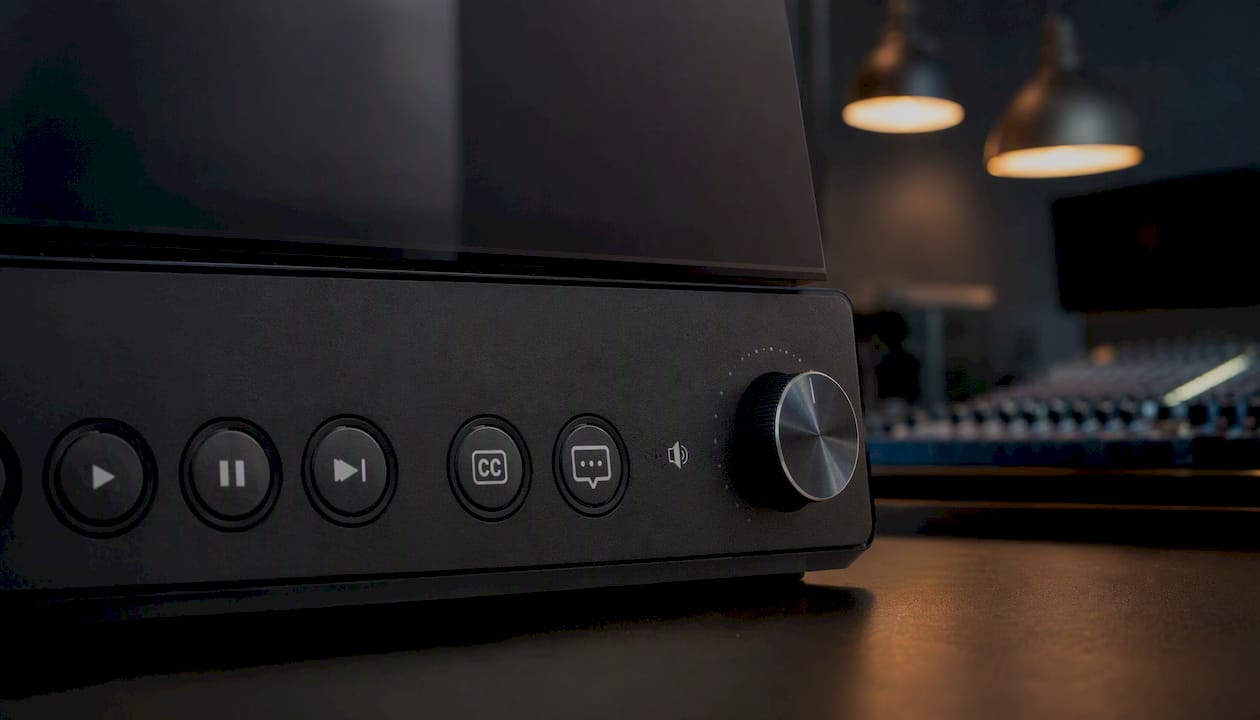
The Revised Section 508 Standards and design guidance are explicit: user controls for closed captions (503.4.1) and audio descriptions (503.4.2) must be provided and must be accessible at the same menu level as volume or program selection. A caption toggle buried three levels deep in a settings panel does not meet this requirement.
Required player controls and behaviors:
Control | Expected Behavior | Verification Step |
Caption toggle | Enables/disables captions; visible at top-level control bar | Confirm control is visible without opening any secondary menu |
Caption track selection | Allows selection among available caption tracks (language, style) | Verify multiple tracks are selectable at the same level as volume |
AD toggle | Enables/disables audio description track | Confirm AD control is at the same level as caption and volume controls |
AD track selection | Allows selection of AD audio track | Test with a video that has both standard and AD audio tracks |
Volume control | Standard; used as the reference level for caption/AD control placement | Confirm caption and AD controls are at this same menu level |
Keyboard navigation | All controls reachable and activatable via keyboard alone | Tab through all controls; confirm focus is visible and logical |
Keyboard accessibility requirements:
Every player control must be reachable via the Tab key.
Focus indicators must be visible (a visible outline or highlight on the focused control).
Controls must activate with the Enter or Space key.
No keyboard trap: pressing Tab must move focus out of the player when the user reaches the last control.
Playback controls (play/pause, seek, volume) must all be keyboard-operable.
Screen reader and ARIA considerations:
Player controls must have descriptive ARIA labels. A button that displays only a caption icon must have an aria-label of “Closed Captions” or equivalent. State changes (captions on/off) must be communicated to screen readers via aria-pressed or aria-checked attributes. Test with NVDA on Windows and VoiceOver on macOS to confirm screen reader announcements are accurate.
Player configuration checklist:
[ ] Caption control visible at top-level control bar (not in a submenu)
[ ] AD control visible at the same level as caption and volume controls
[ ] All controls keyboard-accessible with visible focus
[ ] ARIA labels present and descriptive for all icon-only controls
[ ] State changes (on/off) announced to screen readers
[ ] Player tested with keyboard-only navigation
[ ] Player tested with at least one screen reader
When evaluating a player vendor, ask them to demonstrate caption and AD control placement with a live recording or test script. A vendor who cannot show you this in five minutes is a red flag.
How do you plan accessibility into production before it becomes expensive?
Planning accessibility from the start is consistently more cost-effective than remediating after the fact. A caption file added during post costs a fraction of what it costs to re-render a video because captions were placed over critical on-screen text. AD scripted during preproduction costs far less than AD written against a locked edit with no natural pauses.
Here is how to build accessibility into each production phase.
Preproduction checklist:
Script all on-screen text and lower-third graphics into the caption-safe zone plan
Note all visual-only information in the script that will require AD
Add captioning and AD line items to the budget and schedule
Identify the caption and AD vendor or in-house resource before the shoot
Confirm the target player meets 503.4 before the project is locked
Production guidance:
Record clean, isolated audio tracks for each speaker (simplifies speaker ID in captions)
Capture room tone for AD placement (a few seconds of ambient silence for audio mixing)
Avoid placing critical information only in the lower third of the frame
When shooting interviews, use single-speaker setups where possible to reduce caption complexity
For live events, coordinate with a real-time captioning (CART) vendor and a live AD provider well in advance; latency expectations for CART are typically two to four seconds
Postproduction handoff template:
When sending materials to a captioning or AD vendor, include:
Timecode-locked video master (not a compressed web export)
Timecode-locked script or rough transcript
Style guide: preferred speaker name formats, technical terminology, brand names
Caption-safe zone specifications
Target delivery formats (SRT, WebVTT, TTML)
AD delivery format (alternate audio track or separate file)
For live virtual events, Section508.gov guidance on animations and videos in meetings recommends enabling captions by default where the platform supports it and providing AD for any visual content that is essential to the meeting’s purpose.
A detailed video production timeline that maps accessibility tasks to each phase keeps the whole team aligned and prevents last-minute scrambles. For government-specific projects, a government training video production workflow can help structure handoffs and compliance checkpoints from the start.
How do you run a Section 508 video QA audit?
A QA audit for accessible video content has four stages: preflight, caption and AD review, player validation, and post-deployment checks. Running all four before launch is the only reliable way to catch compliance gaps.
Stage 1: Preflight
Confirm media type (synchronized, audio-only, or video-only) and verify the correct accommodations are planned.
Verify caption file exists and is in the correct format for the target player.
Verify AD file or alternate audio track exists (for prerecorded synchronized media at Level AA).
Verify transcript exists and is published alongside the player.
Confirm player version and configuration against the 503.4 checklist.
Stage 2: Caption and AD review
Play the video with captions enabled and verify synchronization throughout (not just the first 30 seconds).
Check speaker identification at every speaker change.
Confirm all meaningful sound effects are labeled.
Verify captions do not overlap on-screen text or graphics at any point.
Enable AD and verify all essential visual information is described.
Confirm AD fits within natural pauses and does not overlap dialogue.
Stage 3: Player validation
Navigate the player using keyboard only. Tab through every control and confirm focus is visible.
Activate caption and AD controls using keyboard only (Enter/Space).
Test with NVDA (Windows) and VoiceOver (macOS/iOS) to confirm control labels and state changes are announced correctly.
Confirm caption and AD controls are at the same menu level as volume.
Stage 4: Post-deployment checks
Load the published page and confirm the transcript link is visible and functional.
Confirm the caption file loads correctly on the live player (not just in the editing environment).
Test on mobile devices: confirm caption and AD controls are accessible on touch interfaces.
Document results in a remediation ticket if any check fails.
Tool suggestions:
Caption sync review: VLC Media Player (free) allows frame-accurate caption sync review against timecode.
Keyboard navigation: Chrome DevTools accessibility panel and the Tab key.
Screen reader testing: NVDA (Windows, free), VoiceOver (macOS/iOS, built-in), JAWS (Windows, licensed).
Automated checks: WAVE (WebAIM) for page-level accessibility; axe DevTools for player embed accessibility.
Human review: Always required for caption accuracy, speaker ID, and AD coverage. Automated tools cannot assess caption quality or AD completeness.
Pass/fail criteria summary:
Caption synchronization: pass if within two seconds of corresponding audio throughout.
Caption accuracy: pass if all dialogue, speaker IDs, and meaningful sounds are present and correctly transcribed.
AD coverage: pass if all essential visual information is described and AD fits within natural pauses.
Player controls: pass if caption and AD controls are at the same menu level as volume and are keyboard-accessible.
Transcript: pass if published on the same page as the player in an accessible format.
Puritano’s production workflow for accessible video
Accessibility does not add itself to a project. It requires a clear role matrix, defined handoffs, and checkpoints built into the schedule. Here is the workflow we use at Puritano for government and corporate projects where Section 508 compliance is required.
Role matrix:
Producer: Owns the accessibility plan, budget line items, and vendor coordination for captioning and AD.
Director/Shooter: Responsible for caption-safe framing, clean audio capture, and room-tone recording.
Editor: Applies caption-safe zone in the timeline, exports timecode-locked master for captioning vendor, integrates caption files and AD track into the final deliverable.
Captioner: Produces human-edited caption files in SRT, WebVTT, and TTML formats against the timecode-locked master.
AD Writer/Narrator: Scripts and records audio descriptions against the locked edit.
QA Reviewer: Runs the full four-stage QA checklist before delivery.
Developer/Platform Manager: Configures the video player to meet 503.4 and confirms ARIA labeling.
Workflow steps and checkpoints:
Preproduction: Accessibility plan drafted, budget approved, captioning and AD vendors confirmed, player configuration verified.
Production: Caption-safe framing applied, clean audio recorded, room tone captured, script delivered to captioning vendor.
Post (rough cut): Caption file draft reviewed against rough cut; AD script drafted against picture lock.
Post (picture lock): Final caption file delivered and integrated; AD recorded and mixed; transcript published.
QA: Four-stage audit completed; remediation tickets issued and resolved.
Delivery: All files (video master, caption files, AD track or alternate file, transcript) delivered with a compliance checklist.
Time and cost drivers (qualitative ranges):
Captioning typically adds a modest per-minute cost to a project, with human editing taking roughly one to two hours per finished minute of video for complex content. AD adds more time: scripting, recording, and mixing can take two to four hours per finished minute depending on visual complexity. Extended AD (where the video must pause for description) requires additional player configuration and testing time. Plan for these as real line items, not afterthoughts.
Puritano integrates these steps into government video production and corporate projects from the proposal stage, so compliance costs are scoped accurately and never surface as surprises at delivery.
Where can you find authoritative resources for Section 508 video?
The official sources are the most reliable starting point, and they are publicly available at no cost.
Official resources:
Section508: The primary guidance page for video producers. Covers captions, AD, transcripts, and player requirements with practical recommendations.
Section508: Detailed caption quality standards, formatting guidance, and transcript requirements.
Section508: Requirements for content that is audio-only or video-only, including when a transcript or audio alternative satisfies the standard.
ICT Baseline — Synchronized Media (Access Board): The baseline test process for synchronized media, including WCAG mapping and 503.4 control checks. Use this when preparing for a formal accessibility audit.
Section508: Covers player configuration, 503.4 control requirements, and design considerations for synchronized media.
GSA Accessibility Statement: A public example of agency-level accessibility policy. Check your agency client’s own statement for any requirements stricter than the federal baseline.
Plainlanguage: Practical guidance for writing clear transcripts and captions that serve broad audiences, including screen reader users.
Digital: High-level practical tips for avoiding problematic multimedia elements such as flashing or strobing content.
For captioning workflows and tooling:
Professional captioning services vary widely in quality. When evaluating vendors, ask for a sample caption file from a comparable project, confirm they deliver in SRT, WebVTT, and TTML, and verify their human-editing process for speaker ID and technical terminology. The web accessibility and SEO connection is also worth understanding: accessible video content, including properly structured transcripts and captions, contributes to search discoverability as well as compliance.
Why we build accessibility into every project from day one
Here is something we have seen play out more than once: a client delivers a finished video to a federal agency, the agency’s accessibility review flags missing AD and non-compliant player controls, and the project goes back for remediation. The cost of that remediation, including re-renders, vendor fees, and delayed launch, routinely exceeds what it would have cost to build accessibility in from the start.
The math is straightforward. A caption file added during post, before the video is published, costs a fraction of what it costs after the fact. AD scripted against a rough cut, when natural pauses can still be adjusted, is far simpler than AD written against a locked edit with no room to breathe.
But the case for accessibility goes beyond risk mitigation. Captions make video content searchable. Transcripts extend the reach of your content to users on slow connections, in noisy environments, and in situations where audio is not an option. AD serves not just blind viewers but anyone who benefits from a richer verbal description of what is on screen. These are not accommodations that serve a narrow audience. They make every video more useful to more people.
We have also seen the opposite outcome: teams that plan accessibility early, assign clear ownership, and treat captions and AD as production deliverables rather than compliance checkboxes. Those projects deliver on time, pass audits on the first submission, and produce content that genuinely works for every viewer. That is the standard we hold ourselves to, and it is the standard we bring to every project we take on.
Puritano produces accessible video from script to delivery
Puritano Media Group has spent over two decades producing video for federal agencies, nonprofits, and corporate clients who cannot afford a compliance failure at delivery. For Section 508 projects, that means captioning and AD are scoped into the production plan from the proposal stage, not added as line items after the edit is locked.
Our team coordinates captioning vendors, AD writers, and player configuration as part of a single integrated workflow. We deliver SRT, WebVTT, and TTML caption files alongside the video master, and we confirm player 503.4 compliance before the project closes. For live events and virtual productions, our virtual event production services include real-time captioning coordination and accessible player setup.
If you are managing a government or corporate video project that requires Section 508 compliance, contact Puritano for a production quote. We will scope the accessibility requirements accurately from the start so there are no surprises at delivery.
Sources
The following official sources were used throughout this guide. Bookmark them for ongoing reference.
Recommended
Federal work taught us to treat accessibility as a production deliverable, not a finishing step. Our government programs include Navigating the World of U.S. Exports for the Export-Import Bank, two films for the General Services Administration's National Capital Region, and the U.S. Commercial Service's guide to attending an international trade show. Each was produced through an agency review process and built to stay in service for years. Captions, descriptions, and transcripts belong in that same plan from day one.


Comments