

Reliable Multi Camera Live Streaming for Small Teams, 2–4 Cameras
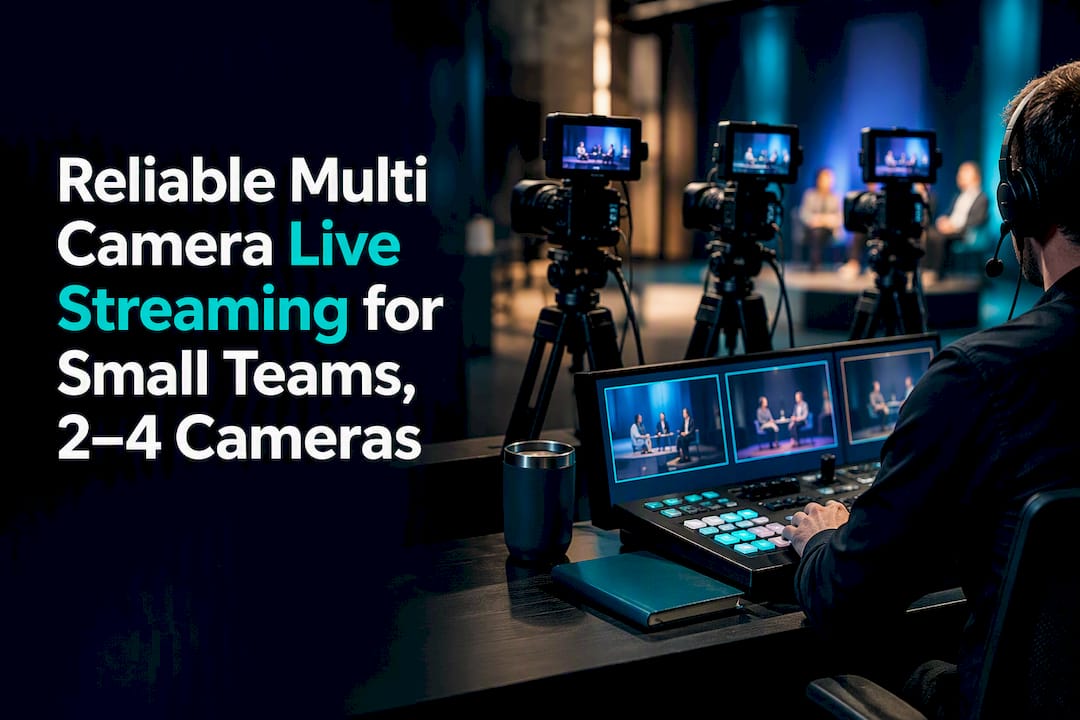
Yes, multi-camera live streaming is practical for individuals and small teams. The most reliable setup pattern is 2 to 4 cameras, a hardware switcher or software-plus-capture workflow, a single mixed audio feed, and a hardwired internet connection. We’ve built these systems for years at Puritano Media Group, and the pattern that holds up under pressure is always the same: 10 Mbps of stable upload for 1080p, a switcher you can operate with confidence, and fewer moving parts than you think you need.
Quick Setup Checklist: What To Gather Before You Start
Before you touch a single cable, confirm you have the minimum viable kit. Missing one piece on show day turns a simple multicam setup into a scramble.
Two or more cameras with clean HDMI or NDI outputs (not consumer camcorders with menu overlays baked in)
Sturdy tripods, positioned for your planned shots
A hardware switcher or capture cards feeding switching software
One audio mixer or USB audio interface for a single mixed feed
A multiview monitor or second display to see all inputs at once
A hardwired Ethernet connection to your router or modem
Beyond the essentials, pack wireless HDMI transmitters if a camera has to sit somewhere awkward, extra batteries, spare SD cards, and a backup internet source like a phone hotspot or Starlink terminal. Set aside 60 to 90 minutes before any live show to run a full end-to-end test: cameras on, audio routed, stream pushed to a private or unlisted platform link. That test catches the problems a rehearsal in your head never will.
Cameras, Capture Cards, and Switchers: Hardware or Software?
Your camera choice matters less than its output. Any camera with a clean HDMI or NDI feed, meaning no on-screen battery icons or focus boxes burned into the picture, works for multicam live video production. Continuous power (AC adapters instead of batteries) and heat tolerance for long sessions matter more than resolution specs.
Hardware switchers like the Blackmagic ATEM Mini line give you physical buttons, a built-in multiview, and dependable performance that doesn’t hang when your laptop decides to run a system update mid-show. That reliability is why hardware switchers are frequently recommended for small-team live events as the safer default. Software switching through OBS Studio trades some of that physical simplicity for flexibility: overlays, scene transitions, and free multiview support that costs nothing beyond your time learning it.
Here’s a detail people miss until it bites them: USB capture cards share bandwidth on the same controller, so stacking three or four cheap USB dongles on one laptop often causes dropped frames. A PCIe capture card or a dedicated hardware switcher avoids that bottleneck entirely.
Pro Tip: Start with the cameras you already own before buying anything new, and match frame rate and color profile settings across every camera so cuts between angles don’t produce a visible flicker or color shift.
How Much Upload Speed Do You Need for Live Streaming?
The internet speed for live streaming question has a concrete answer. For stable 1080p at 60 frames per second, plan for a minimum upload speed of 10 Mbps, while lower-resolution streams can often run on 5 to 7 Mbps. Consistency matters more than peak speed: a connection that holds steady at 12 Mbps beats one that spikes to 50 Mbps and drops to 2 Mbps when a neighbor starts a video call.
Hardwired Ethernet is the standing recommendation for any bandwidth for live streaming setup, because Wi-Fi introduces variability you can’t control mid-broadcast. Keep a cellular hotspot or a Starlink connection on standby as backup, not as your primary link.
For delivery, you have three practical routes: push RTMP directly from a hardware switcher to your platform, run a USB webcam-style output into OBS for added graphics and encoding control, or use a cloud production platform when your team includes remote guests or distributed crew members who can’t be on-site.
Audio Routing: How Do You Keep Sound Consistent Across Camera Cuts?
Audio is where most multicam streams fall apart, and the fix is straightforward. Feed a single mixed audio output into your switcher or encoder instead of relying on whatever microphone happens to be attached to the camera that’s live at that moment. Camera-mounted mics as a primary source cause inconsistent audio the instant you cut between angles, because each camera picks up a different room tone and mic distance.
For live stream audio mixing that actually holds up:
Wireless lavalier mics for presenters who move around
XLR dynamic microphones for noisy rooms or outdoor venues
A small mixer or USB audio interface to combine every source into one feed before it reaches your switcher
Pro Tip: Plan your audio routing before you finalize camera placement, not after. Monitor the program output on headphones throughout the show, and record an independent backup track in case your primary feed drops. Puritano’s own audio setup guide for live event videography walks through mixer routing in more depth if you want the full breakdown.
Live-Switching, ISO Recording, or Hybrid: Which Workflow Fits Your Event?
Three workflows cover almost every multicam live streaming scenario. Live-switching cuts between cameras in real time and needs almost no post-production, which makes it the right call for predictable shows with a confident switcher operator calling shots.
ISO recording captures each camera to its own file for editing later. Choose this when the content will be repurposed into highlight reels, training clips, or social cutdowns after the event ends. A hybrid approach records the ISO feeds while also streaming a live program output, giving you both immediacy and a clean archive to edit from. Most small teams outgrow live-switching-only once they realize how much value sits in the raw footage.
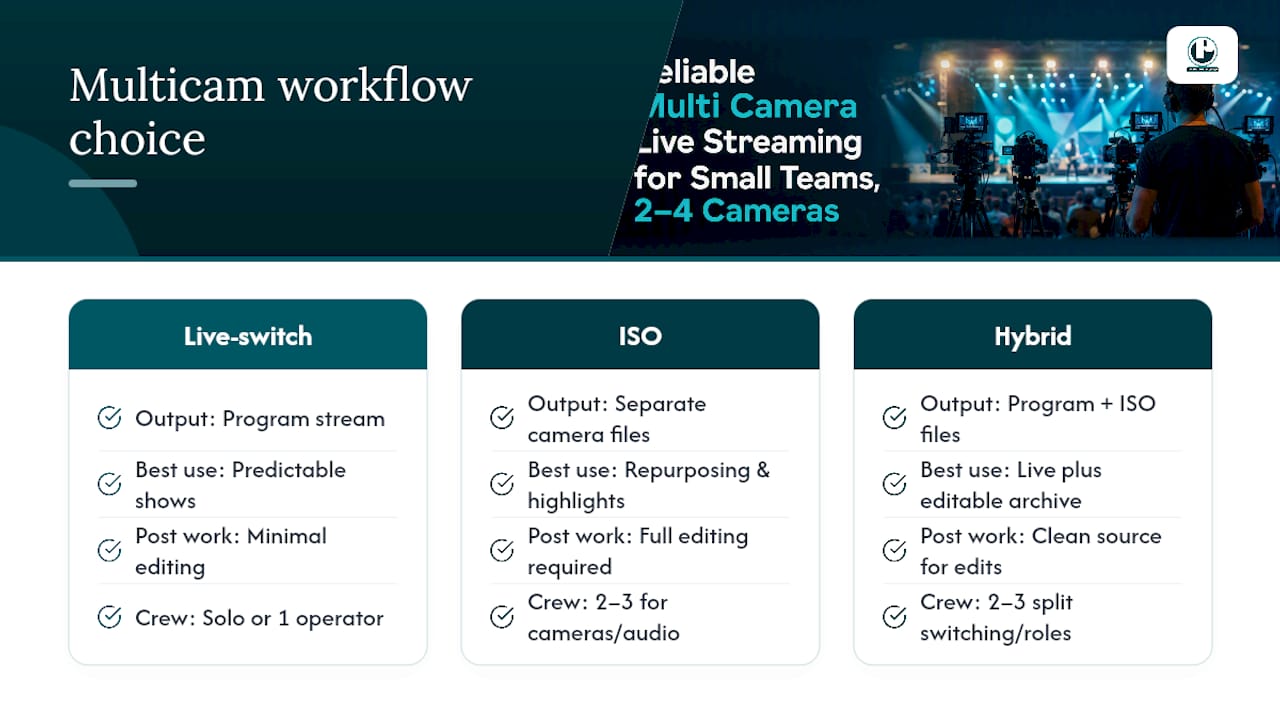
Staffing follows the workflow. A solo operator can run live-switching with simplified camera roles, while a small crew of two or three should split switching, camera framing adjustments, and audio monitoring across separate people so no one is juggling all three at once.
Monitoring, Multiview, and Tally: Staying in Control While Live
Set up your monitoring before you ever go live. A program and preview display alongside a full input grid, called a multiview, shows you exactly what’s on air and what’s queued next. If you’re running OBS alongside a hardware switcher for graphics, a second monitor dedicated to that software keeps you from losing track of either system.
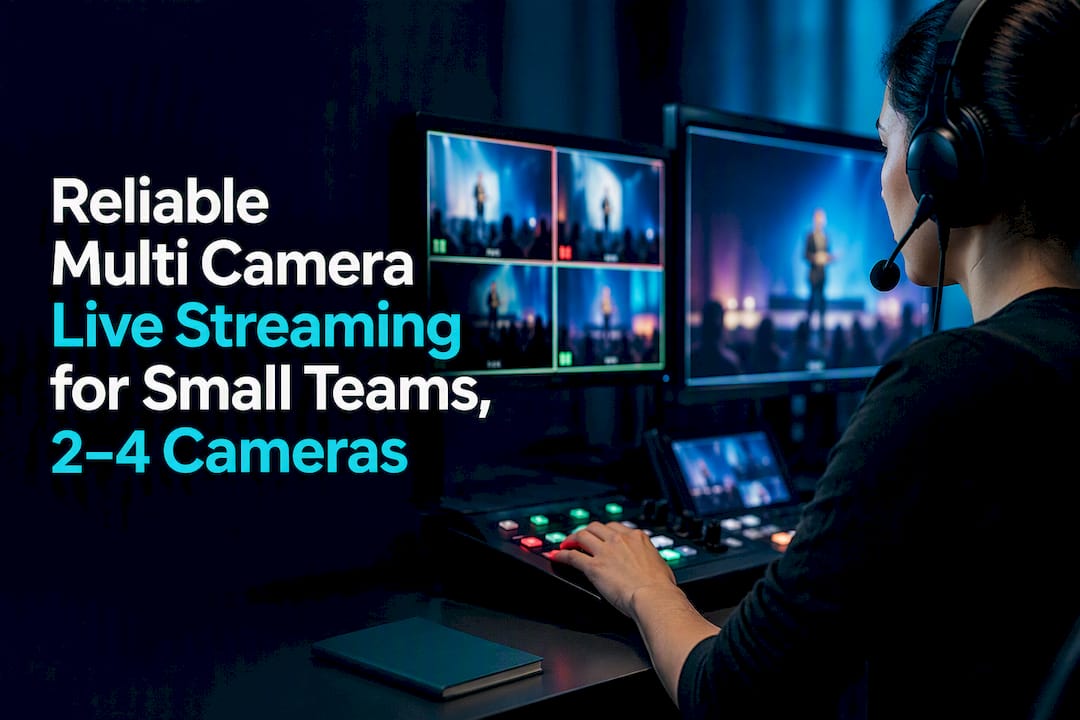
Tally lights (indicators showing which camera is currently live) matter more than people expect once a second crew member joins. Most hardware switchers include built-in tally support. For monitors, a basic HDMI display or even a laptop paired with an external screen works fine. You don’t need a broadcast-grade monitor wall for a two-camera to four-camera setup.
Preflight Checklist: Testing Your Multi Camera Setup Before You Go Live
Run these checks in order, every time, no exceptions:
Confirm every camera feed is live and displaying on the switcher or multiview.
Check that frame rate, resolution, and color profile match across all cameras.
Verify the mixed audio feed is routed correctly and levels are peaking appropriately.
Push a test stream to your platform and confirm ingest is receiving video and audio.
Check tally lights and multiview labels for accuracy.
Network instability is the most common failure. Switch to a wired connection or your backup hotspot immediately if you see buffering. A dropped camera feed usually means a loose HDMI connection; swap to your hardwired failsafe camera rather than troubleshooting live. USB bandwidth issues, multiple cameras stuttering at once, point to a PCIe capture card as the fix. Audio inconsistencies almost always trace back to mixer routing, not the microphones themselves.
Always run a full dress rehearsal, and record locally as a fail-safe even when you’re also streaming live.
Running Multicam Solo or With a Small Team: What Actually Works
Solo operators who run reliable shows tend to follow the same pattern: fixed tripods instead of handheld cameras, one hardwired camera kept within arm’s reach as a failsafe, and a simplified shot plan of wide, close, and one utility angle. Keeping at least one camera hardwired protects you against local Wi-Fi interference exactly when you can least afford a dropped feed.
Small teams should assign roles clearly before the show starts: one person on switching, one on audio monitoring, one adjusting camera framing if needed. Splitting those tasks reduces the mental load that causes mistakes during a live cut.
Puritano’s virtual events case study shows what that staffing model looks like at a larger scale, and it’s worth reviewing once your events outgrow what a two-person crew can reliably manage.
How Puritano Media Group Handles Multi-Camera Live Productions
Some organizations want to run their own multicam setup. Others reach a point where the stakes, a board meeting, a national conference, a broadcast-quality product launch, are too high to leave to a rehearsed-but-unproven internal team. That’s where an alternative to assembling your own crew from scratch is to hire experienced professionals who bring live event coverage, virtual event production, and full AV-plus-streaming staffing built on extensive experience running these types of setups, without your team having to troubleshoot capture card bandwidth issues at the last minute.
A typical engagement starts with a pre-event production plan, moves through an on-site technical run-through, and covers staffed operation through the live show itself, followed by post-event deliverables you can repurpose. Our video production services page outlines the full range, from corporate live events to association broadcasts. If you’re weighing whether to run this yourself or bring in support, request a production assessment and we’ll tell you honestly which route fits your event.
Useful Resources for Deeper Technical Reference
For network speed math, check Optimum’s live streaming bandwidth guide. For hardware switcher setup patterns, see the multicam workflow breakdown at Switcher Studio.
Sources
FAQ
What Is a Good Free Software for Multi-Camera Live Streaming?
OBS Studio is free, cross-platform, and natively supports multiple camera sources with a built-in multiview, making it the standard choice for creators pairing software switching with a capture card setup.
Is There a Camera That Can Live Stream Directly?
Many modern cameras, along with dedicated PTZ (pan-tilt-zoom) cameras, can output live video directly over HDMI or NDI to a switcher or encoder, and some support direct RTMP streaming without any extra hardware in between.
What Security Cameras Offer Continuous Live View?
Most networked security cameras with NDI or RTSP output can feed a continuous live view into streaming software, though they’re generally better suited to fixed monitoring shots than dynamic event coverage angles.
What Is a Good App for Multi-Camera Video Recording?
OBS Studio and similar switching software let you record multiple camera inputs simultaneously as separate ISO files, which is useful when you plan to edit a highlight version after the event. For events where reliability and professional staffing matter more than DIY software, Puritano’s live event coverage team handles multi-camera recording as part of a full production package.
How Many Cameras Do I Need for a Basic Multicam Stream?
Two cameras, a wide shot and a close shot, cover most basic live streams, and three cameras is often the sweet spot once you want a utility or reaction angle added to the mix.
Recommended

Comments